01 Loading Data
This page explains what kind of image data the GUI expects and how to inspect it after loading.
Supported Input Types
The main input format is TIFF. The GUI currently expects spectral image data as either a 3D stack or a 4D stack.
For a standard 3D hyperspectral or multispectral stack, the expected array order is:
channel, y, x
The first axis is interpreted as the spectral/channel axis. Each frame along this axis is one spectral image.
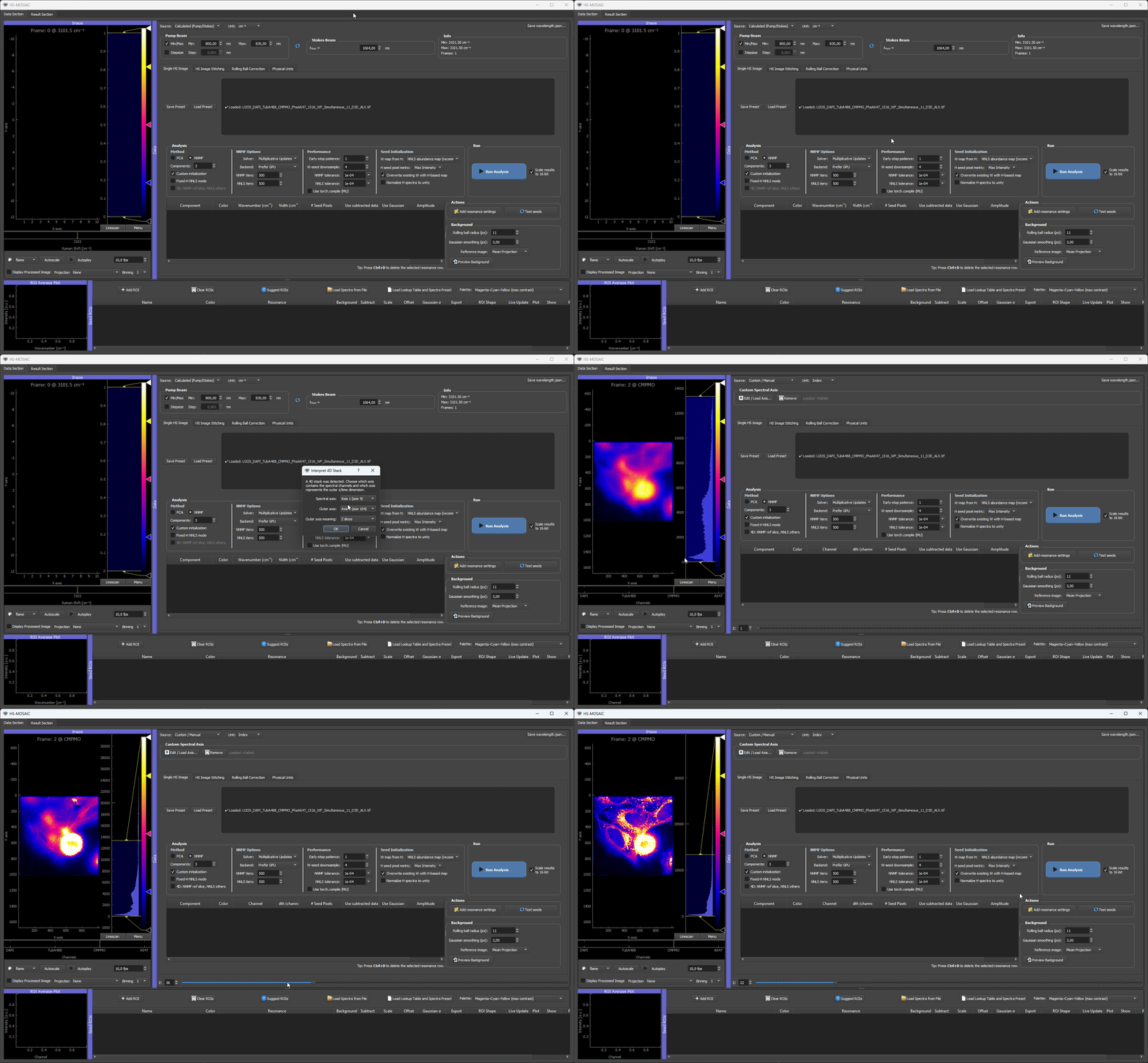
For 4D data, the TIFF contains one spectral/channel axis and one outer z/time axis. When a 4D stack is loaded, the GUI asks which axis is the spectral axis and which axis is the outer z/time axis. Internally, the data are converted to:
z_or_time, channel, y, x
The remaining two axes are treated as spatial dimensions.
Concrete TIFF Layout Examples
The TIFF file is binary, so the most important "format" detail is the array shape saved inside the file.
Minimal 3D example:
import numpy as np
import tifffile

channels = 5
height = 256
width = 256

data = np.zeros((channels, height, width), dtype=np.uint16)
data[0] = 100
data[1] = 500

tifffile.imwrite("example_3d_cyx.tif", data)
The GUI reads this as:
channel 0 -> first spectral image
channel 1 -> second spectral image
...
Minimal 4D example:
import numpy as np
import tifffile

z_slices = 10
channels = 4
height = 256
width = 256

data = np.zeros((z_slices, channels, height, width), dtype=np.uint16)

tifffile.imwrite("example_4d_zcyx.tif", data)
When this file is loaded, choose the channel axis as the spectral axis and the z axis as the outer axis.
Alternative 4D layouts are allowed, but the user must select the correct axes in the loading dialog. If the data are stored as (channel, z, y, x), choose the first axis as spectral and the second axis as outer z/time.
Loading A Single TIFF Stack
Use the Single HS Image tab to load a TIFF file. A file can be opened from the file dialog or dragged onto the drop area.
After loading, the app will:
- read the TIFF data,
- apply optional rolling-ball correction if enabled,
- normalize the image if normalization is active,
- validate the stack shape,
- apply the current binning factor,
- update the spectral-axis widget to the number of channels,
- update the physical image dimensions.
If a wavelength.json file is present in the same folder as the TIFF, the GUI tries to use it for the spectral axis.
Data Types And Intensity Handling
The GUI uses a 16-bit-style loading pipeline so that very different TIFF inputs can still be handled consistently in the same analysis workflow.
What happens during TIFF loading
When a TIFF is opened, the loader first converts the input array into the GUI's working intensity range:
uint16input is kept unchanged.- Smaller non-negative integer types are cast safely to
uint16. - Integer types with values above
65535are scaled down to0 .. 65535to avoid wrap-around. - Floating-point TIFFs are scaled to
0 .. 65535. - Complex TIFFs are converted to absolute values first, then treated like floating-point data.
- If negative values are present, the image is shifted to become non-negative before the
uint16conversion.
This means that unusual TIFF types such as float32, float64, int32, or uint32 can be loaded, but their original absolute numeric scale is not preserved automatically. The loader maps them into the GUI's 16-bit working range.
Float / 32-bit TIFFs are remapped. The original numeric scale is not preserved
If your input is a float32/float64 TIFF whose values are relevant on an absolute scale (counts per second, calibrated reflectance, etc.), HS-MOSAIC's 16-bit working range will rescale them globally before analysis. The relative structure (which pixels are bright, which spectra are which) is preserved, but the absolute numeric value of W afterward is in working-scale units, not in the original physical units. If absolute scale matters for downstream quantification, record the global scale factor used at load time (see the fit summary) and apply it on export.
Normalization after loading
By default, newly loaded images are normalized once more to the full 16-bit display range:
0 .. 65535
This is a global normalization over the loaded stack. It makes datasets with very different raw brightness easier to inspect, but it also means that the loaded values should be interpreted as a GUI working scale, not necessarily as untouched detector counts.
Invalid values and zeros
Before the image enters the analysis pipeline:
NaNandInfare replaced by0.
Exact zeros in the loaded image are preserved. NMF and NNLS only require entries to be non-negative (>= 0), not strictly positive, so legitimate zero pixels stay zero. Where multiplicative-update NMF needs a strictly positive initialization, the seed builders lift their own outputs to a small eps internally; this never overrides the loaded image data. See Non-negativity, exact zeros, and the MU init eps lift for the full reasoning.
What binning changes
Spatial binning averages neighboring pixels. Averaging usually produces floating-point arrays even if the TIFF started as uint16.
So the practical pipeline is often:
TIFF -> uint16 working range -> optional normalization -> NaN/Inf cleanup -> optional binned float image
The binned image is then the canonical image used for analysis and display.
What the analysis backends actually use
PCA, NNMF, and fixed-H NNLS do not operate on integer math internally. The analysis code converts the working image into floating-point arrays where needed:
- PCA works on floating-point data matrices,
- scikit-learn NNMF uses
float32input, - seed generation and similarity/NNLS-related steps often use
float64, - fixed-H NNLS abundance maps are floating-point outputs.
This is expected. The input TIFF may be 16-bit, but the fitted matrices and intermediate arrays are not limited to the original integer range.
Practical consequences
- A
32-bitTIFF can be loaded, but it will be remapped into the GUI's 16-bit working intensity range. - Binning can change the in-memory dtype from integer to floating point.
- Exact raw detector units are only preserved if the original data already fit the current 16-bit workflow and no global renormalization is applied.
- High abundance values in NNMF or NNLS results are not automatically a bug.
Wis a fitted coefficient map, not a copy of the original TIFF intensities.
Loading 4D TIFF / Hyperstack Data
When the loaded TIFF is 4D, an axis selection dialog appears. Choose:
- the spectral axis: the axis containing wavelengths, Raman shifts, channels, or dye channels;
- the outer axis: the axis containing z slices or time points;
- the outer axis meaning: z or time.
For common microscopy hyperstacks, the shape is often similar to:
z, channel, y, x
or:
time, channel, y, x
After loading, the GUI shows a z/time selector below the raw image controls. Changing this selector updates the displayed slice and the analysis input.
Stitching A Tile Folder
Use the HS Image Stitching tab when the dataset is stored as multiple tiled TIFFs. The stitching tool expects filenames that contain x/y tile indices. These indices are extracted with a regular expression.
For the full stitching workflow, regex examples, scan-direction settings, overlap handling, and stitch presets, see 01b Stitching tile folders.
The stitching workflow is:
- Choose or drop the folder with tiles.
- Set the filename pattern, for example
*.tif. - Check whether the table preview correctly detects the tile grid.
- Set overlap in raw pixels.
- Set scan direction in x and y.
- Choose whether to estimate shifts by correlation or use grid/linear blending.
- Click Stitch now.
The result is loaded back into the same data workflow.
Viewing Loaded Data
The raw data viewer provides:
- LUT selection,
- autoscale,
- autoplay through spectral channels,
- playback speed control,
- display of an average image,
- display of processed/subtracted data,
- binning control,
- line-scan view,
- ROI table and ROI average plot.
For 4D data, the z/time selector changes the current outer slice. The spectral channel navigation remains inside the image viewer.
Common Loading Problems
If the TIFF has the wrong dimensionality, the GUI rejects it. Only 3D and 4D stacks are supported in the main spectral workflow.
If the spectral axis appears wrong, check:
- whether the stack order is really
channel, y, xfor 3D data, - whether the correct spectral axis was selected for 4D data,
- whether
wavelength.jsonhas the same number of entries as image channels, - whether a preset from a different dataset was loaded.
If the image is very large, use binning before analysis to reduce memory and runtime.
wavelength.json not detected:
- The file must be named exactly
wavelength.json(lowercase) and placed in the same folder as the TIFF file, not a parent folder. See Spectral axis and wavelength.json.