Presets
Presets store the full analysis session state and make workflows reproducible. There are two preset types: the main JSON preset and the result-viewer .preset file. Both are described here.
For a workflow-oriented introduction, see Presets and reproducibility.
Main JSON Preset
The main JSON preset is the most complete snapshot of a GUI session. Save it with Save Preset in the analysis panel, and restore it later with Load Preset in the same place.
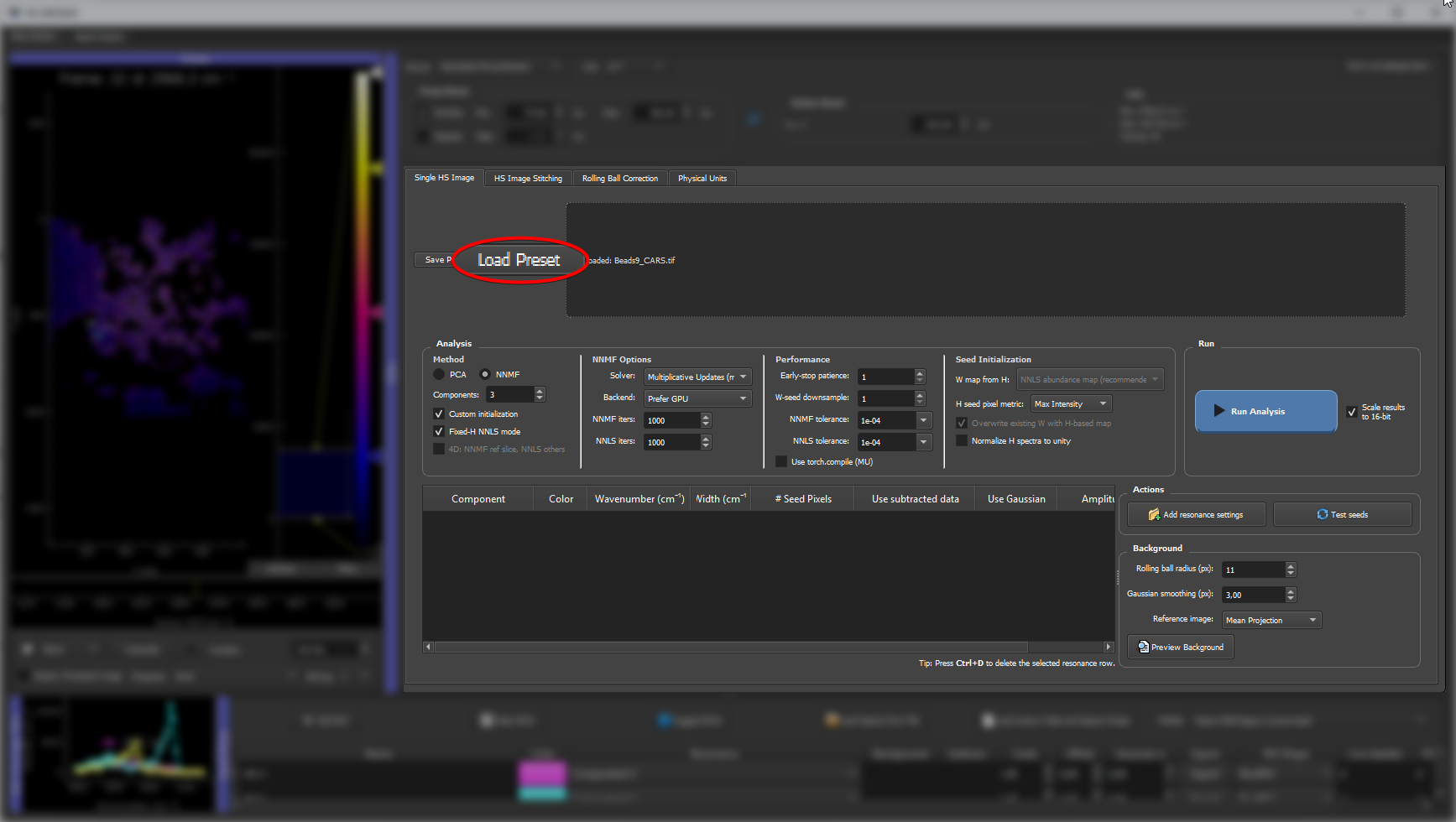
The main JSON preset is saved and loaded from the analysis panel using the highlighted buttons.
What it stores
| Section | Fields |
|---|---|
| Data | image_path, binning_factor, current_slice_index |
| Physical units | fov, unit (nm / um / mm) |
| Spectral axis | wavenumber_widget (source mode, unit, pump/Stokes settings, custom values, custom labels), wavenumbers (derived array) |
| Analysis settings | num_components, analysis_method, custom_initialization, nnmf_solver (mu / cd), nnmf_backend (Prefer GPU / CPU only; v0.9.3 also had Automatic, kept as an alias), nnmf_max_iter, nnls_max_iter, performance_settings (v0.9.4+: W-seed downsample factor, early-stop patience, torch.compile flag, NNMF and NNLS convergence tolerances) |
| Seed settings | seed_init_settings (w_seed_mode, overwrite_existing_w_from_h, normalize_h_to_unity, seed_pixel_metric, fixed-H and 4D fast-mode flags, result scaling flag) |
| Resonance / spectral seeds | resonance_settings |
| Stitching | stitch_manager (pattern, binning, overlaps) |
| ROI manager | roi_manager (all ROI rows: geometry, component, color, spectrum, flags) |
| Display | labels, histogram / LUT state |
What it does not store
- The raw image data itself (only the file path).
- Rolling-ball correction reference TIFF payload (only the correction parameters).
- Temporary analysis results or in-progress W/H matrices.
Loading a preset
Load the preset via Load Preset in the analysis panel. The GUI:
- Restores all stored settings.
- Tries to reload the image from the stored
image_path. If the path is stale (file moved or renamed), the rest of the preset still loads; the image must be opened manually. - Checks whether the spectral axis length in the preset matches the loaded image. If not, a warning is shown.
Dataset compatibility
Presets are most useful when applied to the same dataset or a dataset with identical dimensions and spectral axis. Cross-dataset transfer works for:
- ROI seeds (if the image size is the same),
- spectral seeds (resampled to match the target axis),
- display settings (colors, labels, histograms).
Cross-dataset transfer does not automatically work for:
- ROI geometry if the image resolution changed,
- spectral axis if the channel count or axis range differs.
Result-Viewer .preset File
The result-viewer .preset is a lighter snapshot focused on display settings and seed spectra. It is saved from the result viewer.
What it stores
- Component colors (one per component).
- Histogram / LUT ranges for each component.
- Saved H spectra.
- Spectral axis values at the time of saving.
What it does not store
- Full ROI geometry.
- Physical units.
- 4D slice selection.
- Solver settings or preprocessing choices.
Loading a .preset
Load it from the ROI Manager with Load Lookup Table and Spectra Preset.
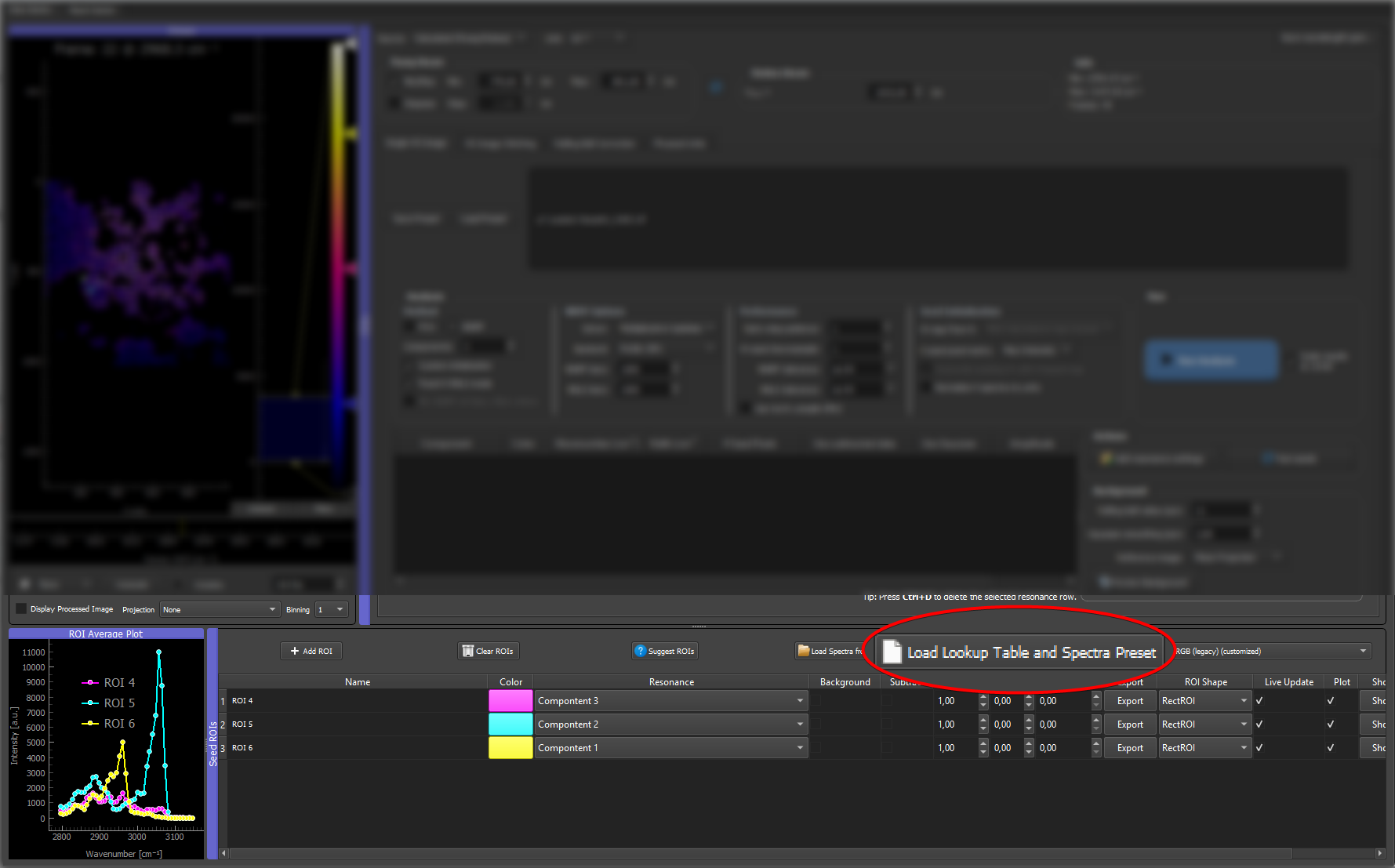
Result-viewer .preset files are loaded from the ROI Manager using the highlighted button.
The GUI then asks how it should be applied:
LUTs Only: applies the saved colors and histogram levels to the current components without changing ROIs.
LUTs + ROIs: applies colors and levels and imports the saved spectra as dummy ROI rows in the ROI Manager.
Use LUTs Only to reuse a carefully styled color scheme on a new analysis result. Use LUTs + ROIs to transfer seed spectra from one session to a new dataset.
Solver and Backend Fields
The main preset stores solver and backend choices. These affect how NNMF and NNLS are executed.
| Field | Values | Meaning |
|---|---|---|
nnmf_solver |
mu, cd |
Multiplicative Update (default) or Coordinate Descent for NNMF. mu is usually more stable; cd can be faster on some data. |
nnmf_backend |
gpu, cpu |
GUI backend preference for multiplicative-update NNMF. gpu (default) tries the first available accelerator (CUDA, then MPS, then XPU) and falls back to CPU torch if none is present; cpu skips the PyTorch path entirely and runs the scikit-learn MU NMF on CPU (not torch CPU). The legacy value auto from v0.9.3 is still accepted and is treated as an alias for gpu since both had identical behavior. |
nnmf_max_iter |
integer (default 1000) | Maximum NNMF iterations for the scikit-learn and PyTorch NNMF backends. |
nnls_max_iter |
integer (default 1000) | Maximum NNLS iterations for fixed-H NNLS reconstruction. Used by the PyTorch/CUDA NNLS backend and passed to SciPy NNLS where supported. |
performance_settings.w_seed_downsample_factor |
integer (default 4) | v0.9.4+. Spatial downsample factor for NNLS / selective-score W-seed estimation and for residual-fallback H-seed estimation. Fresh sessions default to 4. Set 1 for full resolution to reproduce pre-v0.9.4 seed behavior exactly; raise to 8 for very large mosaics. The downsample auto-skips when the image is too small for the factor. The GUI's Fixed-H NNLS reconstruction builds its W maps through this same W-seed path, so the factor also affects those final maps (the GUI warns and offers to reset to 1 on a fixed-H run with factor > 1). Legacy presets (≤ v0.9.3) that lack a performance_settings block fall back to 1 (not 4), so a shared legacy preset reproduces its original seed. |
performance_settings.torch_nmf_patience |
integer (default 1) | v0.9.4+. Consecutive below-tolerance error checks required before MU convergence is declared. 1 matches pre-v0.9.4 behavior (exit at first below-tol check). 2-3 adds noise robustness at the cost of a few extra iterations. |
performance_settings.torch_nmf_use_compile |
boolean (default false) | v0.9.4+. Wrap the MU update body in torch.compile() for kernel fusion. Most effective on CUDA + Triton (~1.3-2x); modest on CPU (~1.2-1.5x); inconsistent on MPS / XPU. Safely falls back to eager mode when compile is unavailable. |
performance_settings.torch_nmf_tol |
float (default 1e-4) | v0.9.4+. Relative-improvement tolerance for the PyTorch MU NNMF solver. The solver samples the Frobenius residual every 10 iterations and stops at the first sample where the relative drop is at or below this value (and patience is satisfied). Tighten to 1e-5 / 1e-6 for publication-grade fits; loosen to 1e-3 for fast exploration on CPU. Affects only the PyTorch MU backend — the scikit-learn NMF path keeps its own internal tol of 1e-4. Legacy presets (≤ v0.9.3) that lack this key restore to the in-code default of 1e-4, which is what earlier releases used unconditionally. |
performance_settings.torch_nnls_tol |
float (default 1e-4) | v0.9.4+. Relative-step tolerance for the PyTorch FISTA NNLS solver. Each pixel chunk is checked every 10 iterations and converges when ‖a^(k+1) − a^(k)‖ / (‖a^(k)‖ + ε) is at or below this value. Tighten to 1e-5 / 1e-6 for fixed-H NNLS publication runs where abundance maps must be at the KKT optimum; loosen to 1e-3 for fast exploration on CPU. Affects only the PyTorch FISTA NNLS backend — SciPy's Lawson–Hanson NNLS has no tol parameter. Legacy presets (≤ v0.9.3) that lack this key restore to the in-code default of 1e-4. |
These settings are also shown in the analysis panel and can be changed before each run.
Seed-Initialization Fields
The main preset stores the seed-initialization controls under seed_init_settings.
| Field | Values | Meaning |
|---|---|---|
w_seed_mode |
NNLS abundance map, Selective score map, H weights, Average image, Homogeneous (empty) |
How W maps are estimated from available H spectra. |
overwrite_existing_w_from_h |
true / false |
Whether H-based W reconstruction replaces existing W seeds or only fills missing W columns. |
normalize_h_to_unity |
true / false |
Restores the Normalize H spectra to unity checkbox. When enabled, completed H seed spectra are scaled to max=1 before seed display, W reconstruction, and analysis. |
seed_pixel_metric |
Max Intensity, Score |
How residual fallback pixels are ranked when H seeds are missing. |
Practical Notes
Always save the preset before exporting figures. The preset is the only complete record of the analysis decisions (seeds, colors, solver settings). Without it, reproducing the exact result from the same data requires manually reconstructing all settings.
Presets are human-readable JSON. They can be opened in a text editor for inspection, but manual editing should be limited to simple, intentional changes (e.g., updating a stale image path). The ROI section in particular contains nested data that is easy to corrupt.
Publication workflow: for a paper, provide the input data (or a representative crop), the preset, and the expected exported result. This makes the analysis inspectable and repeatable. See Presets and reproducibility.