Fiji Export
This page describes what the GUI writes when exporting result images to a Fiji/ImageJ-compatible TIFF.
For the user-facing workflow, see 05 Results and export.
What Is Exported
The result exporter writes a multichannel TIFF that can be opened in Fiji/ImageJ as a composite image.
Depending on the current result, the exported stack is:
CYXfor standard 3D result maps,ZCYXfor z-series results,TCYXfor time-series results.
The export includes:
- component image data,
- LUT colors for each component,
- per-channel display ranges,
- component labels,
- pixel-size metadata,
- axis metadata for Fiji/ImageJ.
LUTs, Ranges, And Labels
The exporter stores the current component colors and histogram ranges so that Fiji/ImageJ opens the file with a matching composite view as closely as possible.
In practical terms, the exported TIFF carries:
- the LUT color of each component,
- the current min/max display range for each component,
- component labels from the ROI manager or default component names.
This is why final component renaming and color selection should be done before export.
Data Type Behavior
Fiji/ImageJ export is an image export step, not a raw matrix dump.
The exporter writes integer TIFF image data. If the result stack entering the exporter is already in the viewer's uint16 working range, it is written directly. If the result stack is floating point, the exporter normalizes it to the saver dtype before writing.
This matters most for NNMF and fixed-H NNLS results:
Wmaps are fitted abundance coefficients,- they can legitimately exceed
65535, - the result viewer may optionally scale them to
uint16for display, - if raw floating-point maps are exported, the saver still writes an integer TIFF representation.
So the TIFF is ideal for Fiji/ImageJ visualization and sharing, while the spectral CSV export and preset file remain the better place to preserve model context.
Pixel Size Metadata
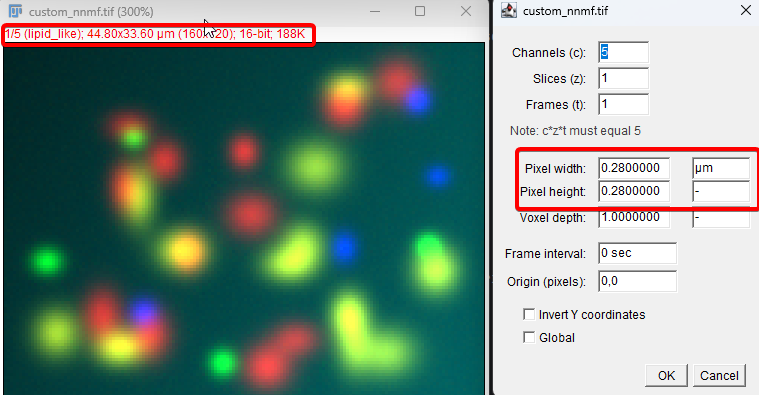
If physical pixel size is known, the exporter writes it into the TIFF metadata used by Fiji/ImageJ.
The pixel size can come from:
- TIFF/ImageJ metadata detected during loading,
- manual entry in the physical-units panel,
- updated values after binning or stitching.
This metadata is used for Fiji scale handling and for the optional scale bar in rendered PNG export.
Hyperstack Export For 4D Results
For 4D analysis results, the exporter writes the full result series, not only the currently displayed outer slice.
That means:
- z-dependent analyses are exported as a z-hyperstack,
- time-dependent analyses are exported as a time hyperstack.
The currently selected slice in the GUI is only a view into that series. The TIFF export includes the whole available result series.
Opening In Fiji/ImageJ
Recommended workflow:
- Open the exported TIFF in Fiji/ImageJ.
- Switch to Composite mode if Fiji does not do so automatically.
- Check that channel labels, colors, and ranges look reasonable.
- Verify the pixel size in Image > Properties... if physical units matter.
- If needed, compare the opened file with the GUI screenshot or preset used for export.
Practical Recommendations
- Export the TIFF for visualization and sharing.
- Export the H spectra as CSV for numerical inspection.
- Save the preset together with the export for reproducibility.